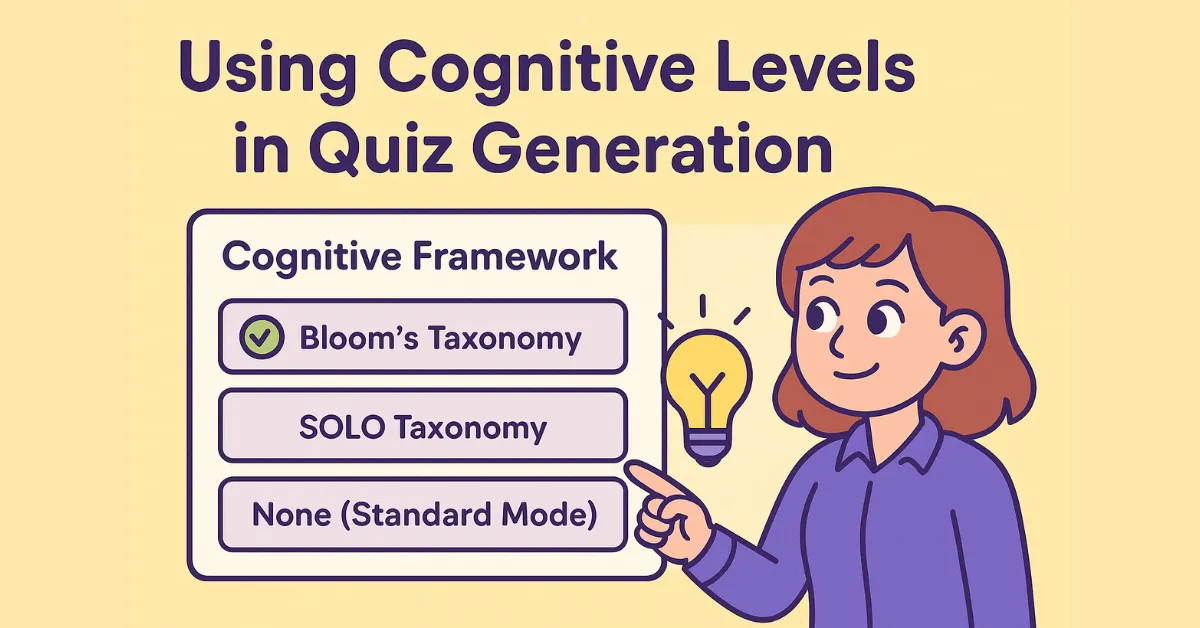
QuizMagic allows you to generate quizzes aligned with established educational frameworks: Bloom’s Taxonomy and SOLO Taxonomy. This guide walks you through the steps to configure cognitive levels when generating quizzes.
What Are Cognitive Frameworks?
Cognitive frameworks help you create quizzes that test different levels of thinking—from basic recall to advanced analysis and creation. QuizMagic supports two frameworks:
- Bloom’s Taxonomy: 6 levels from Remember → Create
- SOLO Taxonomy: 4 levels from Uni-structural → Extended Abstract
Using these frameworks ensures your assessments align with specific learning objectives.
Step 1: Navigate to Quiz Generator
- From your dashboard, select how you want to create your quiz:
- Upload File – Upload PDF, Word, PowerPoint, or image files
- Enter Text – Paste your content directly
- Enter Topic – Let QuizMagic generate content based on a topic
- YouTube Link – Extract content from a YouTube video
- My Uploads – Use previously uploaded files
- After selecting your input method, you’ll be taken to the Quiz Generator form.
Step 2: Add Your Source Material
Based on your selected input method:
- Text: Paste your content directly into the text field
- File: Upload PDF, Word, PowerPoint, or image files (or select from My Uploads)
- YouTube: Paste a YouTube video URL to extract the transcript
- Topic: Enter a topic and QuizMagic will generate source content
Step 3: Configure Basic Quiz Settings
Before selecting a cognitive framework, set up:
| Setting | Options |
|---|---|
| Quiz Type | Multiple Choice, True/False, Fill in the Blanks, Short Answer, or Mixed |
| Difficulty | Easy, Medium, or Hard |
| Output Language | Auto-detect or select a specific language |
| Number of Questions | 5-100 (Premium users get higher limits) |
Step 4: Select a Cognitive Framework
Scroll down to the “Cognitive Framework” dropdown and choose:
| Option | Description |
|---|---|
| None (Standard Mode) | No cognitive level tagging (default) |
| Bloom’s Taxonomy | Tag questions by the 6 Bloom’s levels |
| SOLO Taxonomy | Tag questions by the 5 SOLO levels |
| Mixed (Bloom’s + SOLO) | Combine both frameworks for advanced assessments (Premium) |
Note: Cognitive frameworks are a Premium feature. Free users will see a crown icon indicating premium-only options.
Step 5: Configure Bloom’s Taxonomy Distribution
If you selected Bloom’s Taxonomy, you’ll see checkboxes for each level:
| Level | What It Tests |
|---|---|
| Remember | Recall facts and basic concepts |
| Understand | Explain ideas and concepts |
| Apply | Use information in new situations |
| Analyze | Draw connections and distinctions |
| Evaluate | Justify decisions and judgments |
| Create | Produce new or original work |
How to Configure:
- Check the box next to each level you want to include
- Set the number of questions for each level using the +/- buttons or type directly
- Choose the difficulty (Easy, Medium, Hard) for each level separately
Example Configuration:
- Remember: 2 questions (Easy)
- Understand: 3 questions (Easy)
- Apply: 3 questions (Medium)
- Analyze: 2 questions (Hard)
Important Validation Rule
The total questions across all levels must equal your selected “Number of Questions.” A counter shows your progress:
Total: 10 / 10 questions ✓
If the numbers don’t match, you’ll see a validation error when generating.
Step 6: Configure SOLO Taxonomy Distribution
If you selected SOLO Taxonomy, you’ll see checkboxes for each level:
| Level | What It Tests |
|---|---|
| Prestructural | No understanding; missed the point or used irrelevant information |
| Uni-structural (One Idea) | One relevant aspect understood; simple, obvious connections |
| Multi-structural (Many Ideas) | Several relevant aspects understood; but not integrated |
| Relational (Connecting Ideas) | Aspects integrated into a coherent whole; connections understood |
| Extended Abstract (Going Beyond) | Generalizes beyond given information; creates new ideas |
How to Configure:
- Check the box next to each level you want to include
- Set the number of questions for each level
- Choose the difficulty for each level
Example Configuration:
- Uni-structural: 2 questions (Easy)
- Multi-structural: 3 questions (Medium)
- Relational: 3 questions (Medium)
- Extended Abstract: 2 questions (Hard)
The same validation rule applies—totals must match your selected question count.
Step 7: Configure Mixed Taxonomy Distribution
If you selected Mixed (Bloom’s + SOLO), you can combine both frameworks for more precise cognitive targeting. Mixed taxonomy pairs Bloom’s cognitive processes (WHAT students think) with SOLO complexity levels (HOW complex their thinking is).
Available Combinations:
| Combined Level | What It Tests |
|---|---|
| Remember + Uni-structural | Recall a single fact or piece of information |
| Remember + Multi-structural | Recall multiple items as a list without integration |
| Understand + Uni-structural | Explain one concept or term |
| Understand + Multi-structural | Describe multiple aspects of a process or concept separately |
| Understand + Relational | Explain how concepts connect and relate to each other |
| Apply + Multi-structural | Use multiple formulas or procedures in sequence |
| Apply + Relational | Connect theory to practice showing relationships |
| Apply + Extended Abstract | Apply knowledge to new, unfamiliar scenarios |
| Analyze + Relational | Compare and contrast showing relationships between concepts |
| Analyze + Extended Abstract | Analyze patterns that generalize beyond the given information |
| Create + Extended Abstract | Produce original work that extends beyond given information |
How to Configure:
- Select a combined level from the dropdown
- Set the number of questions for that combination
- Choose the difficulty (Easy, Medium, Hard)
- Click “Add Level Combination” to include additional combinations
- Remove combinations using the × button
The same validation rule applies—total questions across all combinations must equal your selected question count.
Step 8: View Cognitive Levels in Results
After generation, each question displays its cognitive level. Look for:
- Bloom’s Level: Shows as a badge (e.g., “Bloom’s: Analyze”)
- SOLO Level: Shows as a badge (e.g., “SOLO: Relational”)
Toggle Visibility
Use the “Show Cognitive Levels” toggle above your quiz results to show or hide the level badges.
Tips for Best Results
For Bloom’s Taxonomy:
- Formative assessments: Focus on Remember, Understand, Apply
- Summative assessments: Include Analyze, Evaluate, Create
- Balanced quizzes: Distribute across 3-4 levels
For SOLO Taxonomy:
- Entry-level assessments: Focus on Uni-structural and Multi-structural
- Advanced assessments: Include Relational and Extended Abstract
- Progressive assessments: Start simple, increase complexity
General Tips:
- Match difficulty settings to cognitive levels (higher levels often pair with harder difficulty)
- Use the Additional Notes field to guide AI on specific focus areas
- Review generated questions and use the Edit feature to adjust levels if needed
For Mixed Taxonomy:
- Lower complexity assessments: Combine Remember/Understand with Uni-structural/Multi-structural
- Higher complexity assessments: Combine Apply/Analyze with Relational/Extended Abstract
- Capstone assessments: Use Create + Extended Abstract for original thinking
- Scaffolded learning: Progress from simple combinations to complex ones
Frequently Asked Questions
Can I use cognitive frameworks with all quiz types?
Yes! Cognitive frameworks work with Multiple Choice, True/False, Fill in the Blanks, Short Answer, and Mixed quizzes.
What if I don’t configure any levels?
If you select a framework but don’t check any levels, QuizMagic will generate a standard quiz without cognitive tagging.
Do students see cognitive levels when taking quizzes via Smart Sharing?
No, cognitive level badges are visible only to teachers/quiz creators. Students see the questions without framework tags.
Can I save a quiz with cognitive levels?
Yes, saved quizzes retain all cognitive level information. You can access them from Saved Quizzes anytime.